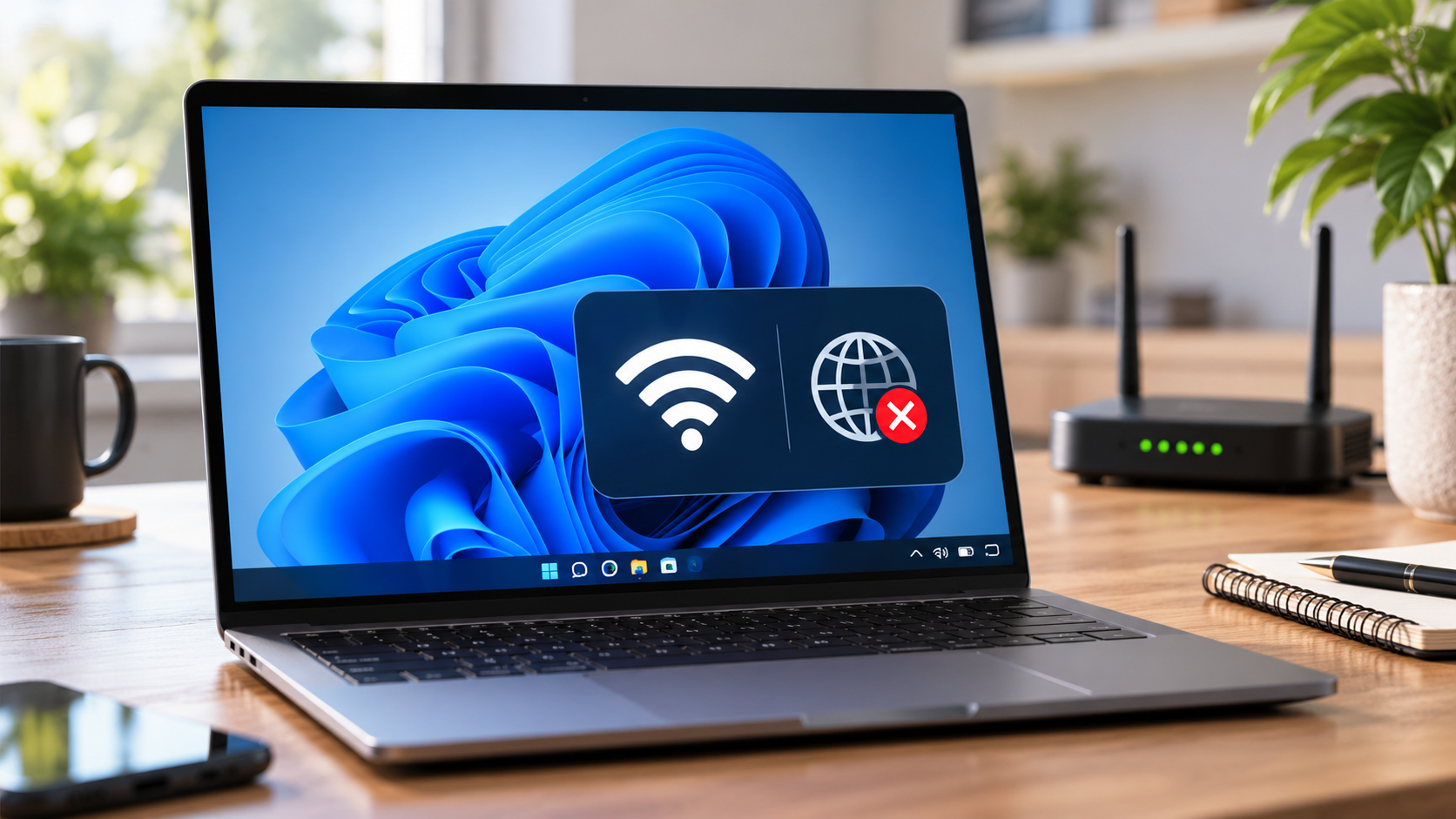

A laptop can show a full Wi-Fi signal and still fail to load a website. The icon only proves that your computer has established a wireless link; it does not establish that your router can reach the internet, that DNS is responding, or that a specific application is allowed through your firewall. The fastest repair therefore begins with isolation, not with a collection of commands copied from the internet. This guide assumes you own or administer the computer and have access to its normal settings.
First identify the scope of the failure
Before changing anything, write down three observations: whether other devices on the same Wi-Fi work, whether the affected laptop can open more than one website, and whether it can connect through a different network such as a personal phone hotspot. This simple matrix narrows the problem dramatically. If no devices can browse, investigate the router, modem, or service provider first. If the laptop fails on two unrelated networks, local software or the wireless adapter becomes a stronger suspect. If only one browser fails, a browser extension or proxy setting is more plausible than a defective router.
Try two unrelated destinations rather than trusting a single website that may itself be unavailable. A banking site or a login portal may behave differently from a public homepage. If your network uses a captive portal at a hotel or campus, open a regular HTTP page to trigger the sign-in interface; do not bypass the network owner's access rules.
Read the connection details before changing them
Open Settings → Network & internet → Wi-Fi, select the connected network, and look at the assigned IPv4 address, DNS information, and whether the connection is identified as connected. An address starting with 169.254 can indicate that the device did not obtain a usable address from the local network. That points toward DHCP, access point, or adapter configuration rather than a random web-browser problem. Record the original settings or take screenshots before editing them.
In Command Prompt, ipconfig /all provides an address, default gateway, and DNS servers for each adapter. You do not need administrator access to read this output. If the default gateway is missing on a conventional home network, start at the router or DHCP configuration. If multiple adapters are listed, look for the one labeled Wi-Fi rather than a disconnected virtual adapter or VPN interface. Avoid publishing this diagnostic output publicly because it may expose local network details.
Separate router failure from a DNS failure
If other devices browse normally, test whether the laptop can reach the router's settings page at its listed default-gateway address. Being able to open the router but not public sites establishes that the local connection is at least partly functional. If public sites work by one name but not another, investigate DNS resolution; if the browser reports certificate or clock errors, check system time rather than disabling certificate validation.
You can run nslookup example.com to see whether a DNS server returns an address. A slow or failed answer can be a DNS clue, but it is not definitive proof of the root cause: corporate networks and security controls may intentionally filter specific domains. If your ISP offers multiple DNS resolvers, compare against its approved settings or troubleshoot with the network administrator. Do not install unknown 'internet booster' tools that ask for administrator access.
Use the least disruptive Windows fixes first
Start by toggling Wi-Fi off and on, then forget and reconnect to the correct network if you know its password. Next restart the router only if you control it and doing so will not interrupt other users. Windows 11 also has a built-in Network and Internet troubleshooter in the Get Help experience. Let it report its findings before changing drivers. Check Windows Update and, if needed, obtain the Wi-Fi driver from the laptop or adapter manufacturer's official website.
For a simple DNS cache issue, ipconfig /flushdns is a relatively narrow change. Releasing and renewing the IP address can interrupt network access temporarily, and full network reset is substantially more disruptive. Microsoft's network reset can remove adapter configurations and affect VPNs or virtual switches; reserve it as a last resort after recording what you will need to recreate.
What to do if a VPN or security application is involved
A VPN can replace routes or DNS configuration, so a laptop may appear connected even when the VPN tunnel is broken. If company policy permits it, disconnect the VPN briefly and re-test; then restore the required security configuration. If the problem began after installing a firewall or VPN product, use its own diagnostics rather than blindly disabling all protections. On managed school or workplace computers, report the issue to IT before changing network policies. Avoid accepting a website's suggestion to run unfamiliar PowerShell code to fix connectivity.
Verify the repair and document the cause
Open several ordinary websites, refresh a page after a minute, and confirm applications such as video calls and updates are working. Repeat one test after waking the laptop from sleep: intermittent reconnection problems can hide behind a successful first attempt. Record what changed—new driver, renewed address, corrected DNS settings, or router reboot—so the next outage takes less time to isolate.
A useful rule is to change one variable at a time. If you simultaneously reset Windows networking, replace your router, and install a driver, the internet may return, but you will not know which action mattered or what risk you introduced.
Common questions
Should I always switch to a public DNS service? No. A resolver change may help in a specific DNS outage, but it will not repair an ISP line problem or weak wireless signal. It may also conflict with workplace or parental-control policies.
Does a strong Wi-Fi signal prove my ISP is working? No. Signal strength describes the radio connection between your device and access point, not the entire internet path.
When is hardware replacement reasonable? Only after the adapter repeatedly fails across known-good networks and software or driver issues have been isolated.
Primary reference
Microsoft's official Wi-Fi connection troubleshooting guide covers Windows 11 and cautions that a full network reset should be a late step. Menus can vary slightly with Windows updates and device manufacturers.