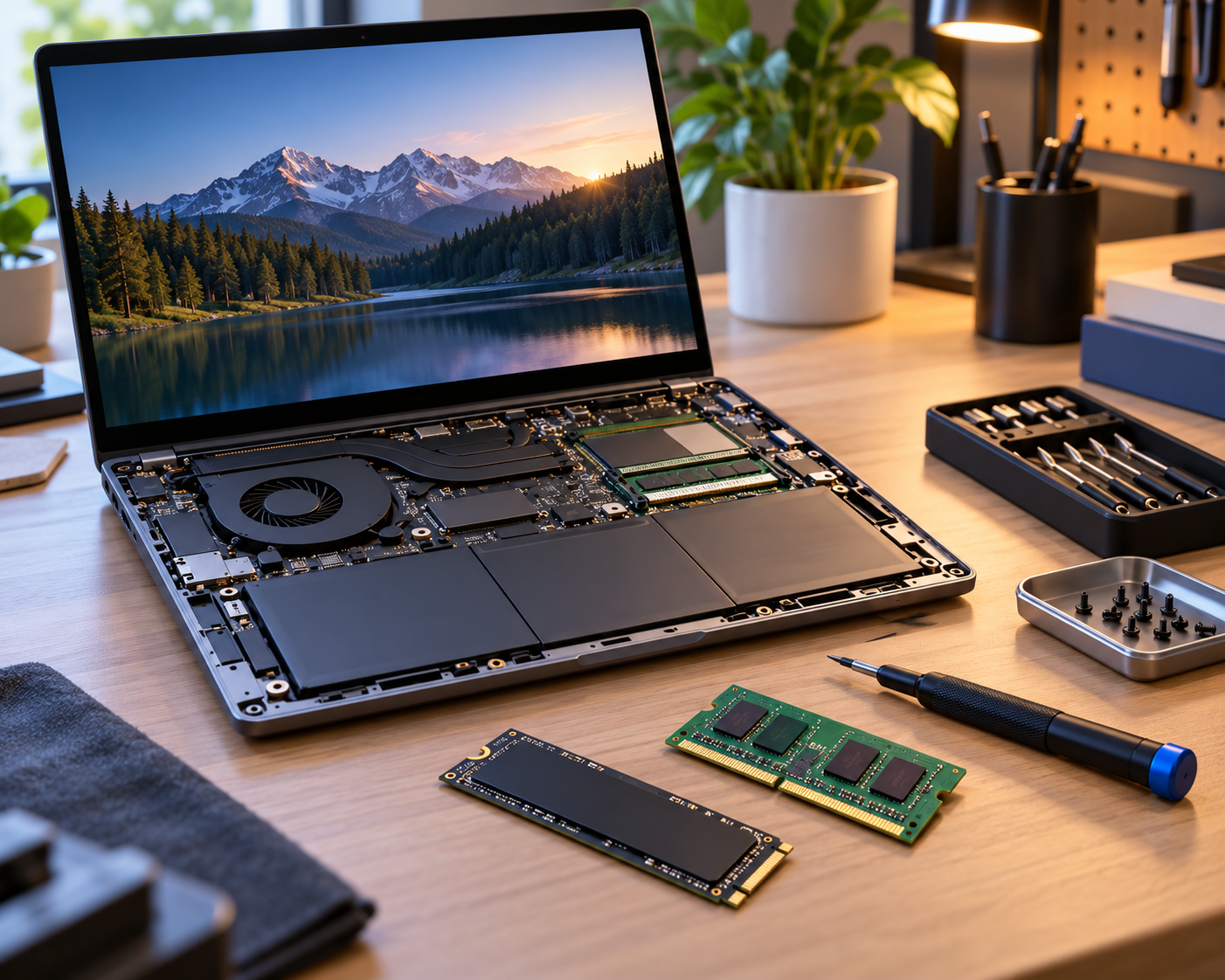

Selling a computer can recover value and keep usable hardware out of landfill. It also introduces a privacy risk: the device may contain personal documents, browser sessions, saved passwords, account tokens, tax records and files removed from the desktop but not from its storage. Deleting a user folder is rarely enough to prepare a computer for someone else. The right process depends on the operating system, storage technology and whether the device is owned by you or by an organization.
First establish ownership and restrictions
Before wiping anything, confirm you are authorized to transfer the device. A school or employer may own the laptop even if you use it daily. Managed computers can have device-enrollment rules, encryption recovery keys and remote-management locks. Ask the organization to decommission its equipment rather than trying to circumvent those protections.
For personal devices, check whether the laptop is still covered by warranties, subscriptions or service plans that can be transferred. Record the serial number for your records and consider photographing the condition before handing it to a buyer. Do not post the serial number publicly unless necessary for a legitimate transaction.
Back up more than the obvious folders
Copy essential files to a separate location and verify that backups open. Check Documents, Desktop, Downloads, photos, notes, local email archives, creative projects and any application-specific exports. Remember browser bookmarks, password manager migration, software-license details and authentication recovery codes. Some applications keep data in hidden profile folders or cloud accounts rather than visible folders.
A good test is to sign in to the replacement device and confirm that you can open a selection of essential files and use the required accounts. If you cannot restore something now, postpone the sale until you understand where it lives.
Sign out and disconnect accounts
Review Windows or macOS account connections, cloud synchronization, app licenses and devices listed in your primary account's security dashboard. Sign out of services that use stored device tokens, and revoke sessions or authorized-device registrations when appropriate. For a Mac, Apple's documented handover process also addresses Find My and Activation Lock. For a Windows device, check Microsoft-account and any organization enrollment requirements before wiping.
Do not assume that resetting the operating system automatically removes the device from every cloud service, subscription or management account. Many services require separate account-side steps. If the computer has been used for business, also document transfer of shared files and any licensed applications.
Choose the proper erase mechanism
A supported factory-reset process is usually more appropriate than deleting folders by hand. On compatible Macs, Apple's Erase All Content and Settings can sign out of services and remove local content through the supported workflow. Other Mac models require Apple's alternate erase and reinstall instructions. The exact process depends on hardware and system software; verify your model rather than following a generic video.
On Windows, use the operating system's supported reset and clean-drive options when appropriate. Review Microsoft's current documentation on preparing a device for sale, including any options for cleaning the drive. For highly sensitive organizational data, follow an approved sanitization standard or use certified destruction when required. SSDs can retain remnants in ways that make simplistic overwriting assumptions unreliable.
Protect encryption recovery material
If the laptop uses BitLocker or another full-disk encryption feature, make sure you can access your own keys and files while preparing the replacement. Once your migration is verified, remove local user data through the supported process and handle any recovery material according to your security obligations. Encryption reduces exposure when correctly configured, but it should be part of a deliberate handover plan rather than a reason to skip verification.
For a broken drive that cannot be wiped, do not sell it intact when it contains sensitive data. Seek a qualified disposal or destruction method appropriate to the information involved.
Test the out-of-box experience
After erasure, the device should boot to the appropriate initial setup screen and no longer expose personal accounts or files. Do not complete setup under your own account again unless necessary for testing, since that may relink your identity to the computer. Verify obvious hardware functions—keyboard, charger, display, ports—and include any relevant accessories honestly in the sale description.
If the device has a removable SIM, memory card or external dongle, check for them before handover. Remove stickers that identify private company systems or contain contact data.
Keep a handover record
Document the model, serial number privately, sale or donation date, and data-erasure method. For business devices, use a disposal record signed by an authorized person. This makes later warranty, asset inventory and privacy questions easier to answer. A clean transfer should leave the new owner able to set up the laptop without access to any of your accounts.
Common questions
Is deleting everything from Recycle Bin enough? No. It is not the same as secure device preparation or sanitization.
Should I wipe before I test the replacement computer? Back up and verify migration first, or you may destroy the only remaining copy of important files.
Can I sell a managed company laptop? Only if the owner explicitly authorizes transfer and decommissions any management controls.
Reference
Apple's pre-sale device guidance details account and erasure steps for Macs. For Windows systems consult the latest official Microsoft reset and device disposal documentation.