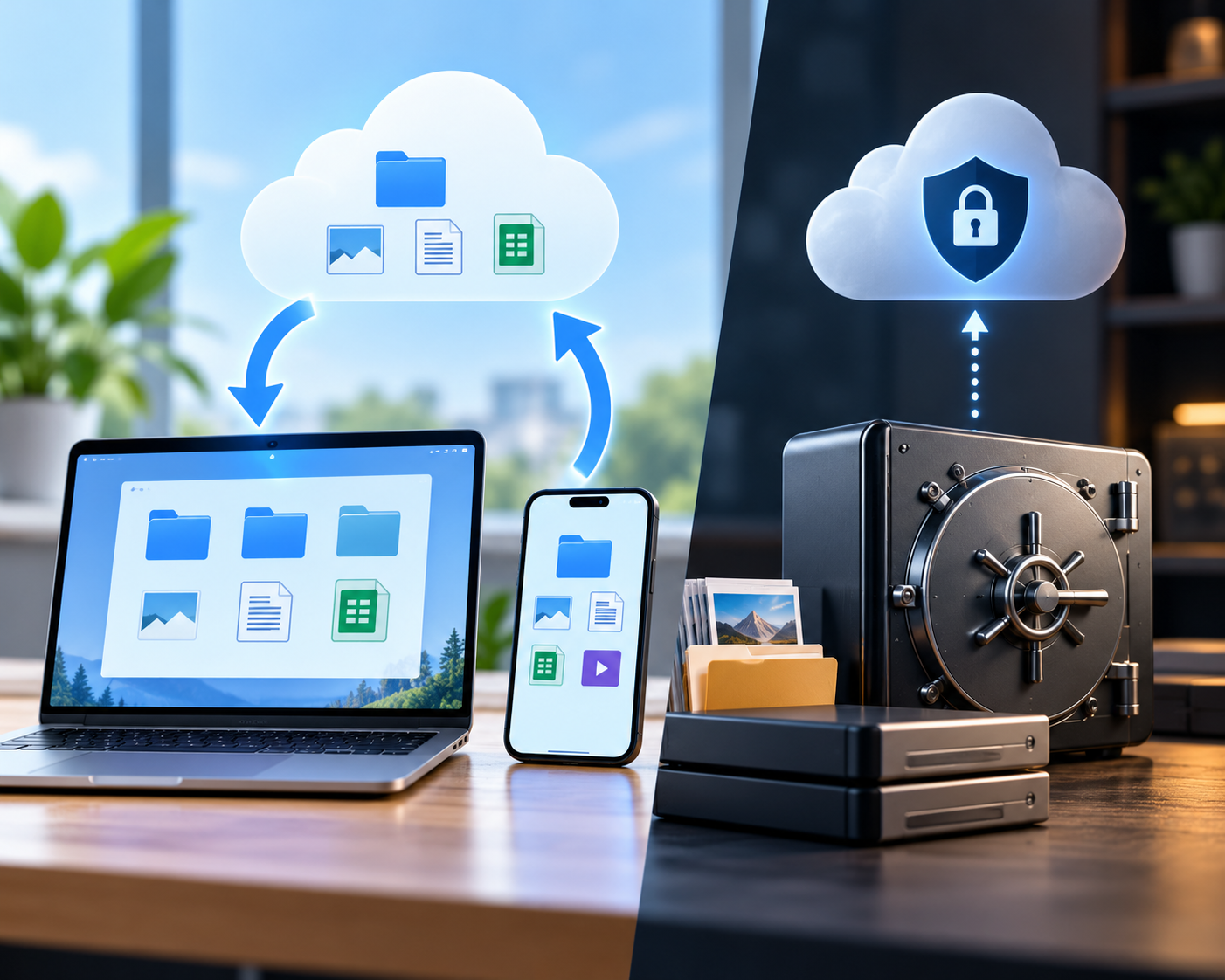

Moving documents into a synchronized cloud folder is an excellent way to access files across a laptop, phone and desktop. It can also create a false sense of security. If a corrupted document synchronizes, the cloud may faithfully deliver that corruption everywhere. If someone deletes a shared folder, the deletion may replicate as designed. Convenience, synchronization and disaster recovery are related but different goals.
Identify what your cloud service actually does
A synchronization service keeps selected files or folders consistent between devices and an account. It may provide conflict handling, deleted-file recovery and previous versions, but the availability and retention periods depend on the service and subscription. A backup system is designed to preserve recoverable copies after unexpected loss and usually needs a defined retention and restore process.
Read the terms of the exact plan you use rather than relying on a comparison from years ago. Free and paid tiers may differ, as can personal and business accounts. Enterprise administrators may also impose policies affecting deletion, retention or sharing.
The accidental-deletion scenario
Suppose you delete a folder on your laptop thinking it is only a local cache. A sync client may propagate that deletion to the cloud and other computers. Recovery may be possible from a recycle bin or version history, but only within supported limits. Test this safely with a disposable file rather than experimenting on a real project. Record where the recycle bin is and who has permission to restore items.
Shared folders add another layer: a colleague with edit access may delete or overwrite a file without intending to. Clear naming, appropriate permissions and version history can reduce the damage. For critical files, keep an independent backup that is not under the same ordinary collaboration permissions.
Sync conflicts and offline edits
If two people edit the same document offline, the service may produce conflicting copies or choose an application-specific merge strategy. Do not assume it will resolve every type of file correctly. Database files, virtual machine images and large creative project files can have special sync restrictions. Consult software-vendor support before placing active databases or production applications in ordinary synced folders.
When working offline, check synchronization status after reconnecting. A green check icon can mean different things between providers and operating systems. Open the actual recent document on another device before telling a colleague that the latest version is available.
Storage-saving features and offline availability
Many clients support online-only placeholders that save disk space. Such files may appear in your folder even when their contents are not downloaded. Before a trip, mark essential documents for offline availability and verify that you can open them with the network disabled. Conversely, an entire cloud library stored locally can quickly fill a small SSD.
For large media archives, decide what belongs in fast local storage and what can remain cloud-first. Keep the cloud account's login and MFA recovery secure; lack of account access is itself a type of data loss.
Design an independent recovery copy
For important personal files, maintain a separate versioned local backup and, when warranted, an offsite copy. For work teams, choose a centralized backup product that explicitly supports the chosen cloud collaboration service. Configure appropriate retention and restrict who can permanently remove protected backups. Test restores of individual documents as well as larger folder trees.
If the business operates under data-retention or privacy obligations, coordinate backup policies with those requirements. Keeping a copy indefinitely 'just in case' may conflict with legitimate deletion obligations; too little retention may make recovery impossible. Define and document an appropriate policy.
Security and shared links
Review external sharing links periodically and remove broad access that is no longer needed. A link that allows anyone with the URL to edit a folder carries more risk than a limited invitation to authenticated users. For a team, prefer separate accounts with revocable access instead of a universal password. If a staff member departs, disable their access and transfer ownership of essential files through supported procedures.
A five-minute restore drill
Create a disposable document, allow it to sync, delete it, and practice restoration according to the provider's documented features. Then restore another representative file from your independent backup to a different folder. These tests answer two separate questions: can the collaboration service undo an ordinary mistake, and can you recover if the cloud account itself becomes inaccessible?
Common questions
Is cloud storage automatically a second backup? Not necessarily. Sync, version retention and account permissions determine the actual protection.
Can I work offline with cloud files? Yes, when the service and client support offline copies that you have downloaded beforehand.
Does paying for more storage increase retention? Not always. Check the plan's actual recovery features.
Reference
Microsoft's OneDrive support resources describe syncing, Files On-Demand and file restoration. Other providers implement similar concepts differently.