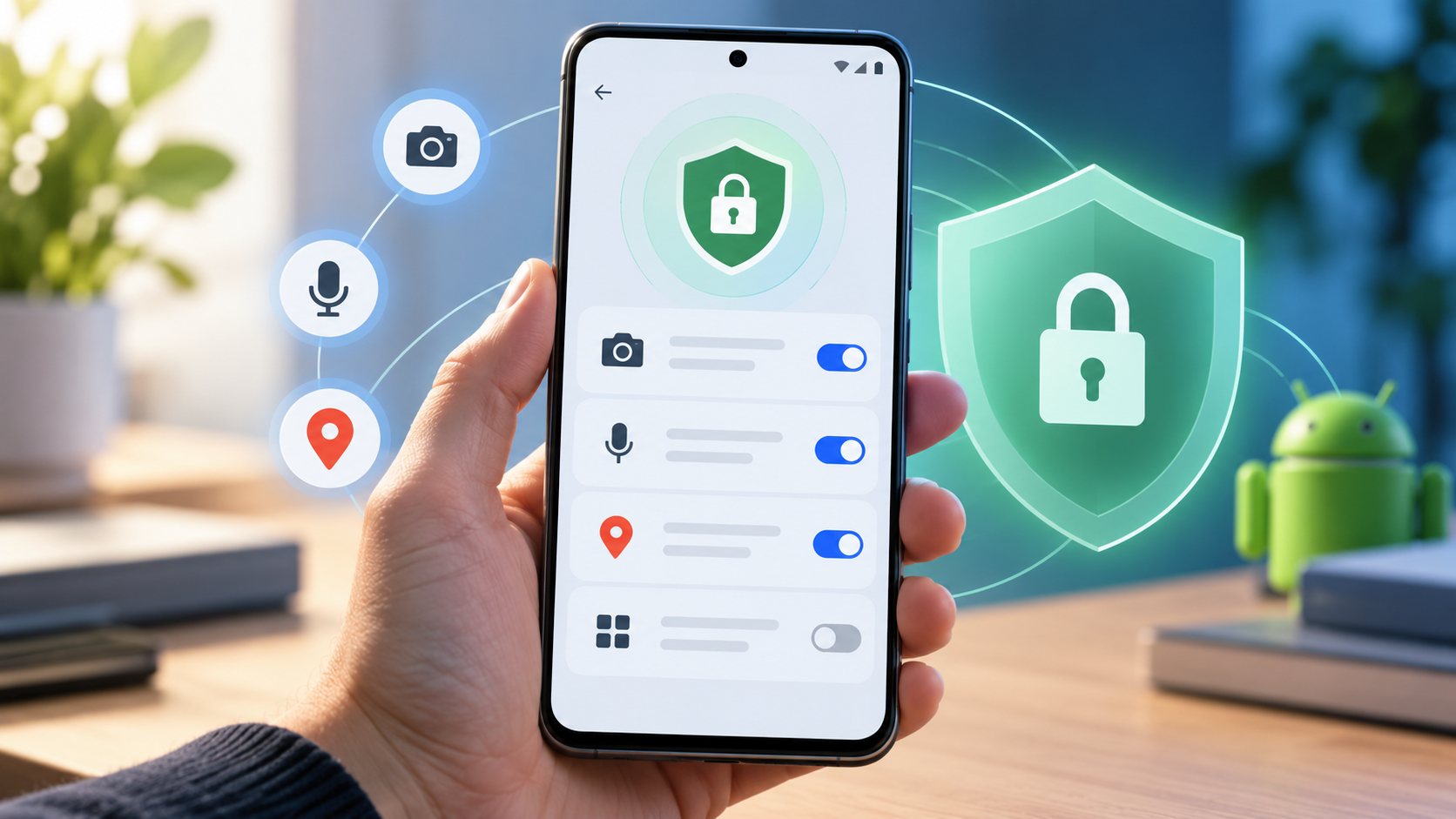

A weather app might need approximate location to show a useful forecast, but it usually does not need access to your entire photo library. An app's permission prompts should be judged against the feature you are trying to use, not against a generic rule that every request is bad. Android gives users controls for camera, microphone, location, notifications and other access, but the exact names vary by software version and manufacturer.
Start with the most sensitive permissions
Open Android Settings and locate Privacy, Security & privacy, or Permission manager, depending on the device. Review location, camera, microphone, contacts, nearby devices and files access. Ask which installed apps have ongoing access and when they actually need it. A map needs location when routing, while a photo editor may need access to images you select but not background location tracking.
Review permissions in context. A video meeting app legitimately uses the microphone during calls. A simple calculator requesting camera, contacts and precise location should trigger questions, unless those features are explained by a specific capability. Avoid granting access simply because a button is labeled 'Continue.'
Prefer limited, task-based access
Where Android supports options such as 'Only while using the app,' 'Ask every time,' and 'Don't allow,' use the narrowest option compatible with your actual needs. For photos or videos, use a system picker that grants access to selected items when available. If an app works with approximate location, giving it precise location may not be necessary.
Be aware that changing permissions can interrupt legitimate features. A camera scanner cannot scan documents without camera access. A location-sharing safety app may fail to provide useful tracking if its background permission is removed. Test critical functions after edits, particularly work attendance tools, accessibility applications or emergency services.
Read the operating system's privacy indicators
Modern Android versions show visible indicators when certain sensors, such as the camera or microphone, are being used. If an indicator appears unexpectedly, identify the active app and close or investigate it rather than assuming the whole phone is infected. Android's privacy dashboard on supported devices can help you see which apps accessed sensitive sensors recently.
A privacy dashboard is a window into permission usage, not definitive proof that an app is trustworthy. Review the developer identity, update history, installed source and app behavior together. Some system services legitimately operate with permissions that regular apps do not use.
Audit notification and accessibility access separately
Notifications can expose private message previews on a lock screen, even without a malicious app. Consider hiding sensitive previews when a phone is shared or used publicly. Accessibility services can control or observe extensive device interactions to assist users with disabilities; that power also makes them sensitive. Grant such access only when genuinely needed and to trusted software.
Similarly, device administrator, VPN, usage-access and 'install unknown apps' permissions deserve extra care. These are not equivalent to a harmless notification toggle. If a basic app demands an unusual high-privilege setting, search the developer's official help page or choose an alternative with a narrower design.
Update and remove apps deliberately
An app that is no longer used does not need to retain permissions. Uninstall outdated or abandoned apps after confirming important data can be exported. Updates may change available features or request new permissions, so periodically recheck apps that handle sensitive data. Prefer official app stores and verified developers; no store review process can eliminate all security risk.
If you suspect a compromised device, avoid granting further permissions to an unknown 'cleaner.' Review installed apps, use built-in security scans and consult vendor support if you cannot identify a suspicious program. Preserve business data and recovery methods before a factory reset.
A recurring five-minute privacy review
Every month or two, scan the camera and microphone access list, check which apps have precise or background location, and review privileged services. Remove permissions that no longer match actual usage. Then try one critical workflow—camera calls, navigation, secure messaging—to confirm you did not introduce a problem. The goal is predictable control, not permission-denial for its own sake.
Common questions
Will denying an app's location always stop all location inference? No. Apps may still infer a general area from network information, subject to platform policies and controls.
Can a permission show 'allowed' without recent use? Yes. Permission grants and recent access logs answer different questions.
Are all preinstalled apps unsafe? No. Evaluate their role, support, configuration and actual behavior individually.
Reference
Google's Android permission management help describes how to change permissions and interpret available access modes.