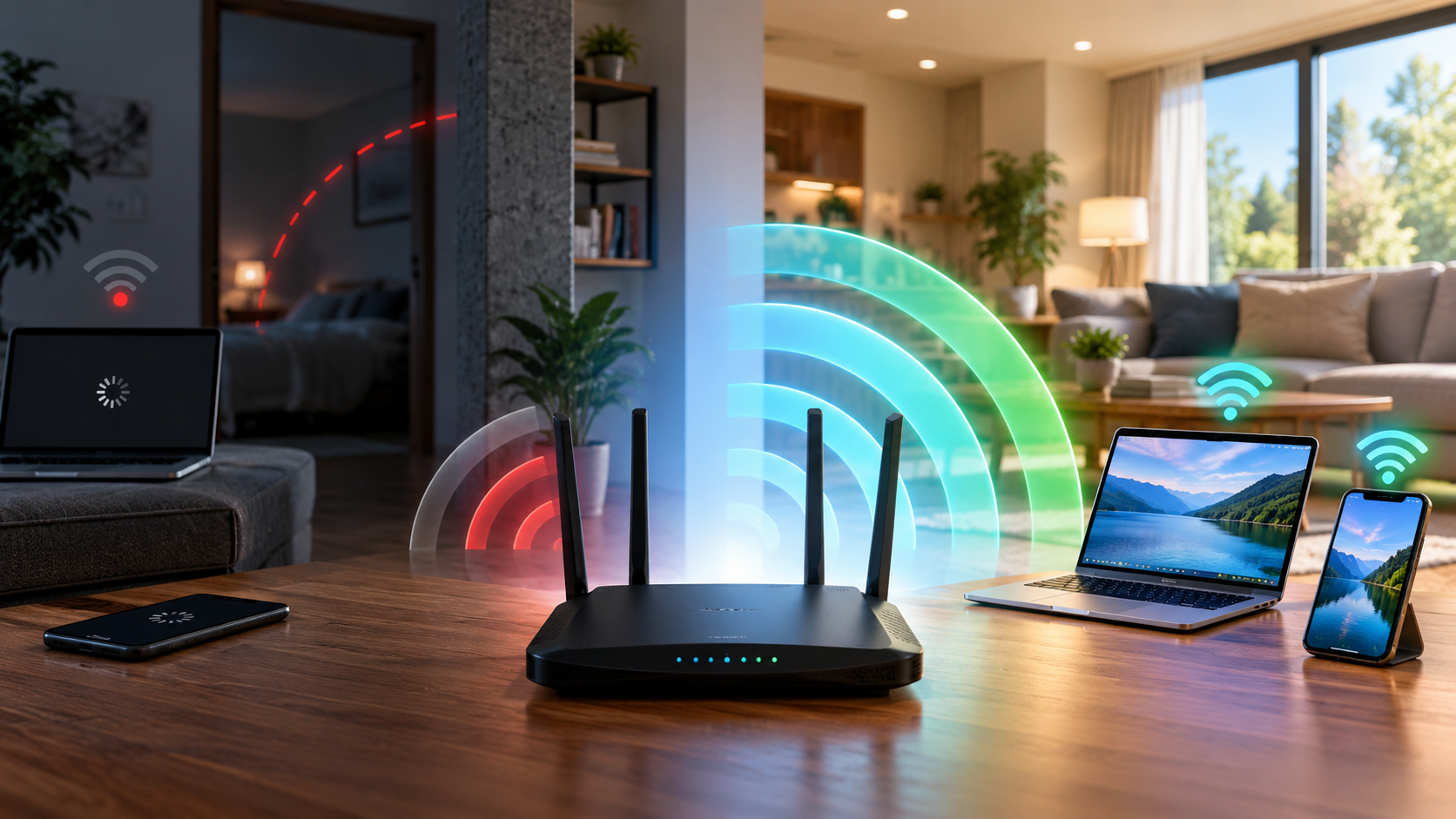

When a video call freezes in a bedroom but a speed test looks fine in the living room, the problem may not be your internet plan. Wireless performance depends on distance, building materials, interference, device capability, and congestion, while the internet subscription influences the connection beyond the router. Replacing the router without testing which part is failing can be expensive and disappointing. A measurement-based approach gives you a better diagnosis.
Define the actual problem
'Wi-Fi is slow' can mean an unusually slow download, unreliable latency, intermittent disconnects, weak signal, or one app struggling while others work. Record the device, location, time, and task when it happens. Does a large download stall, or is it only video calls? Does the issue appear in the evening when multiple devices are active? A single internet speed number does not answer these questions.
For online meetings and gaming, latency stability and packet loss may matter more than maximum throughput. For large cloud backups, sustained upload performance may be the bottleneck. Start by choosing a test that resembles the activity that actually causes trouble.
Establish a wired baseline
If you can safely connect a computer by Ethernet to the router, test from that connection first. A healthy wired connection combined with poor wireless results points toward Wi-Fi coverage, interference, or client devices. Poor results over both wired and wireless links may indicate an ISP outage, a saturated connection, poor cabling, or router performance problems.
Repeat tests several times rather than trusting the highest speed shown by one website. Check whether another household member is uploading large files during the test. If the wired link itself negotiates an unexpectedly low speed, inspect the Ethernet cable and connected port ratings before calling the ISP.
Measure Wi-Fi where people actually work
Compare the same laptop in three places: close to the router, the troublesome room, and a middle location. Keep the test server and other circumstances as consistent as possible. If throughput collapses only through one wall or at one corner, building layout is a strong clue. Concrete, brick, metal cabinets and appliances can make wireless coverage uneven. Moving a router into a more central, open location may help more than changing a subscription tier.
Avoid hiding the access point behind a television or inside a metal enclosure. Raise it away from the floor if appropriate, and position antennas according to the manufacturer's instructions. A mesh system can improve coverage over a large house, but placement and backhaul quality still matter; it does not create additional ISP capacity.
Compare bands instead of chasing the biggest number
The 2.4 GHz band often reaches farther and may work better through obstacles, though it can be busy. Higher-frequency bands can provide better throughput at shorter distances under suitable conditions. Actual performance depends on the device, channel environment and local regulatory rules. A 5 GHz connection is not automatically better if its signal becomes unstable two rooms away.
If your router allows it, try connecting to a different band and compare real usage. Do not assume a phone's Wi-Fi icon bars are directly comparable to a laptop's bars. Devices have different antenna designs and indicators. Record consistent practical outcomes, such as whether a call remains stable and whether a file transfer completes.
Check congestion, firmware and network load
Many homes contain smart televisions, cameras, cloud-storage clients and devices that quietly transfer data. Review router statistics, if available, for heavy clients. Schedule large backups for a quieter period and enable sensible quality-of-service settings if your equipment supports them. Misconfigured QoS can worsen performance, so make incremental changes and verify the result.
Update router firmware through the official mechanism and check client Wi-Fi driver updates. If only one laptop is affected, do not replace a whole-house router without testing that device on another known-good network. If the problem began after a software update, check the manufacturer's known issues or rollback guidance rather than guessing.
Decide whether new equipment is actually justified
A new router makes sense when your current unit cannot support the number of devices, receives no security updates, repeatedly overheats, or lacks needed coverage capabilities. Mesh or an additional wired access point can help a multi-floor home where a single router cannot provide adequate signal. An Ethernet backhaul between access points is often more predictable than a weak wireless hop, when installation is practical.
A higher-speed ISP plan is appropriate only if you can show that the existing service is the bottleneck. If wired performance already matches the plan and Wi-Fi fails only in one room, increasing the plan's headline speed will not repair the dead zone.
Confirm the improvement
Retest the original problem at the same location and comparable time. If a video call no longer freezes but an online speed test remains unchanged, that can still be a meaningful improvement. Note equipment placement, chosen band, and any changed settings so you can revert if performance deteriorates elsewhere. Aim for consistent real-world performance, not the highest single benchmark.
Common questions
Will a Wi-Fi extender always improve speed? No. Placement and wireless backhaul can limit throughput; test before committing.
Can my neighbor's Wi-Fi interfere? Nearby networks can compete for shared wireless airtime. Good channel selection and placement can help, but the best settings vary.
Is buying Wi-Fi 7 always necessary? No. Match network equipment to your client devices, house layout, budget, and support needs.
Reference
Microsoft's Wi-Fi troubleshooting documentation includes testing multiple devices and frequency bands as part of connectivity diagnosis.