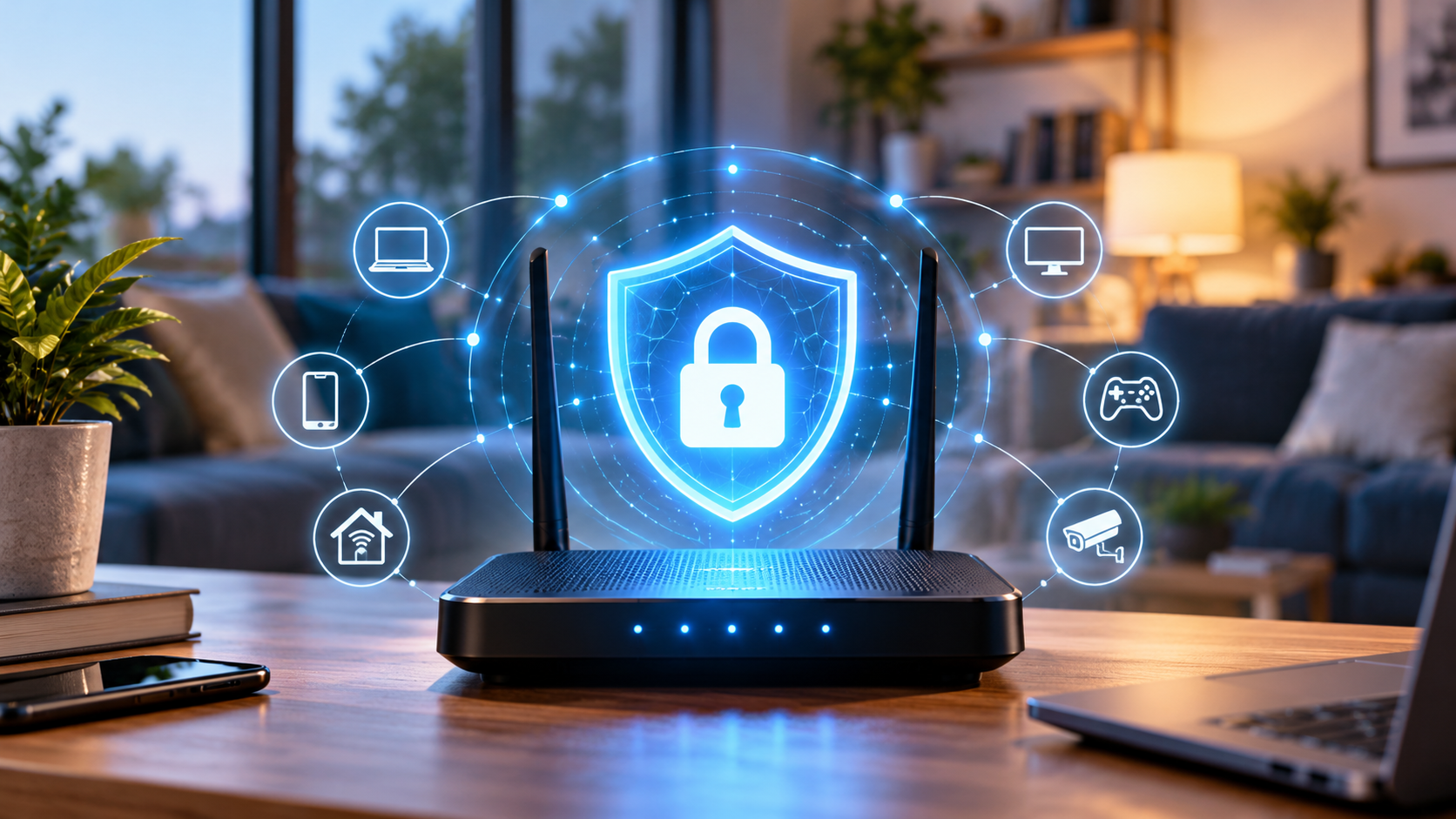

The home router is often the least glamorous device in the house, yet it determines how computers, phones, televisions, and smart appliances reach the internet. A strong Wi-Fi password helps, but it is only one part of router security. Administration settings, firmware updates, guest networks, exposed remote features, and forgotten devices also deserve attention. You can improve many of these controls without purchasing a new router.
Find out what equipment you actually control
Some homes have one ISP-supplied modem/router, while others have a modem plus a separate Wi-Fi router or mesh system. Identify each model, where settings are managed, and which organization provides updates. If your ISP locks certain settings, ask its support team rather than attempting unsupported firmware installations. A device with two routers may also create confusing double-NAT behavior that is unrelated to security.
Before changing configuration, record the current Wi-Fi name, connection credentials, internet settings, and any special features required for work or gaming. Keep those details securely. A factory reset without knowing the ISP credentials or deployment settings could leave the household offline.
Secure the administrator account first
The router admin password is not the same as the Wi-Fi password. Change a default or weak administrator password to a unique, strong credential stored in a password manager. If the router supports administrative multifactor authentication, enable it. Avoid making the router's administrator page reachable from the open internet unless there is a carefully justified and secured business requirement.
Disable remote administration features that you do not use, and review vendor cloud-management permissions. If administration over an app is necessary, ensure the linked account has strong login protection and that old family or contractor accounts no longer retain access.
Choose the strongest compatible wireless protection
Look for WPA3-Personal on compatible equipment. WPA2-AES remains relevant for devices that do not support WPA3, but avoid outdated options such as WEP and WPA/TKIP. Mixed-mode configurations may be needed for older smart devices, but this is a compatibility compromise to evaluate rather than a security badge. A long, unique Wi-Fi passphrase is useful even with modern wireless encryption.
Turn off WPS PIN methods if you do not need them. Wi-Fi Protected Setup can be convenient, but older implementations have had security weaknesses; the simplest household configuration is often to connect devices with the passphrase or a reputable vendor pairing flow.
Keep firmware updated without improvisation
Router firmware updates can fix vulnerabilities, improve compatibility, and adjust features. Prefer automatic security updates when supported and trustworthy. Otherwise, check the vendor's official support page periodically. Confirm the exact hardware revision before installing firmware: similar product names can hide incompatible images. Never interrupt a firmware upgrade to save a few minutes.
An unsupported router that no longer receives security updates may justify replacement, particularly if it exposes remote management or handles sensitive work traffic. Buying the newest wireless speed label is less important than getting reliable updates and a manufacturer who documents them.
Separate guests and unfamiliar smart devices
A guest network can prevent visitors from automatically sharing the main local network with your laptops and storage devices. If supported, enable client isolation or appropriate segmentation for guests. Smart-home devices that rarely receive updates may also belong on a separate network, depending on the capabilities of your router. Test whether legitimate home functions such as printing or casting still work before enforcing strict isolation.
Review the router's connected-device list after changes. Names can be cryptic and devices may randomize their MAC addresses; do not assume that an unfamiliar entry is malicious without checking family devices and randomized-address settings. Remove genuinely obsolete access and rotate credentials when a shared password has been widely exposed.
Watch what matters over time
Check firmware status, administrator access, new port forwards, and unusually exposed features every few months. Document why any inbound port must remain open and review it after the related application is removed. Universal Plug and Play can make gaming and media devices easier to configure but can also allow automatic port mappings; decide deliberately whether it is appropriate for your household.
If you suspect compromise, change passwords from a trusted device, consult the ISP or router vendor, apply available updates, and consider a documented reset and rebuild. Avoid relying on 'one-click security scan' websites that demand credentials for the router.
Common questions
Will changing my Wi-Fi name make the network secure? No. Encryption, passwords, update support, and administrator security matter more than whether the network name is recognizable.
Does a guest network completely isolate everything? Not always. Its behavior depends on router firmware and configuration; verify isolation using the manufacturer's guidance.
How often should I replace a router? There is no universal fixed interval. Support status, actual security updates, reliability and requirements are stronger factors than age alone.
Further reading
CISA's Secure Our World guidance covers strong credentials, multifactor authentication, updates and phishing awareness; apply these principles alongside your router vendor's official configuration instructions.