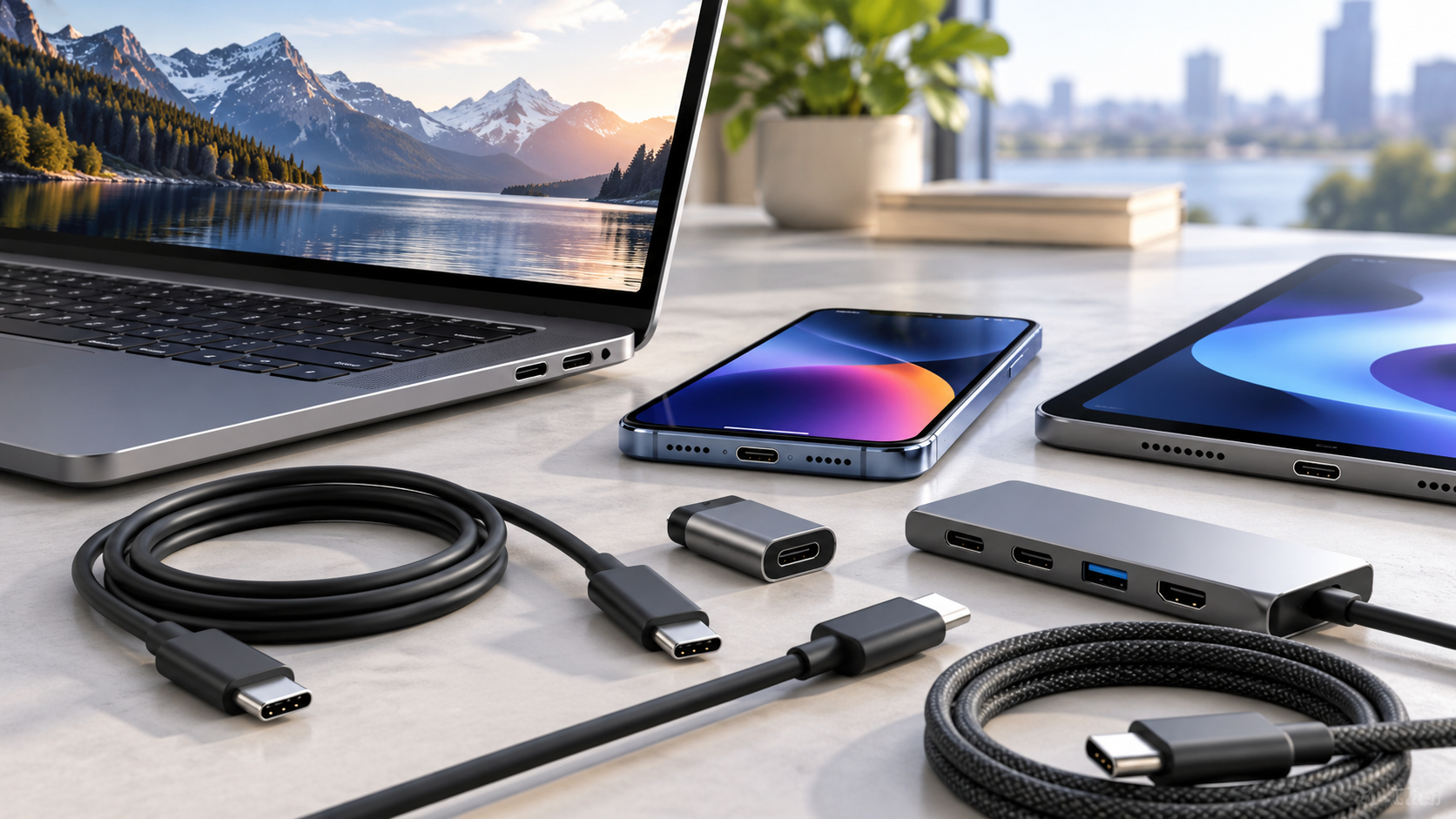

Two laptops can have identical oval USB-C connectors but very different abilities. One port may charge a computer, drive a 4K monitor, and transfer files rapidly; another may only carry basic USB data. The connector's shape is not a guarantee of the protocols behind it. This distinction explains many disappointing accessory purchases, especially when a dock looks compatible in a product photograph but cannot perform the job you need.
Think of USB-C as a connector, not a speed rating
USB-C describes the reversible plug and socket. Data performance depends on whether the device and cable support the relevant USB standard. Marketing terms, link rates, and practical transfer speeds are not interchangeable: a connection advertised with a high signaling rate may deliver lower real file-copy speeds because of overhead, storage limits, or simultaneous use of other functions. Compare the detailed specifications of both endpoints rather than judging by color or shape.
For each purchase, identify the exact laptop model and the exact port being used. Manufacturers may equip multiple USB-C ports with different capabilities. The service manual or official specifications should say whether a port handles charging input, display output, or a particular data standard.
Charging requires agreement between charger and device
USB Power Delivery lets compatible devices negotiate an appropriate electrical profile. That does not mean every USB-C charger supplies the power your laptop needs. A phone charger may be sufficient to keep a small tablet running but inadequate for a performance laptop under heavy load. Some laptops accept charging on only one specific USB-C port, while others use a proprietary power connector.
Check the charger wattage, cable rating, and device's official power requirements together. A reliable branded charger with appropriate safety certification matters more than a suspicious 'maximum turbo power' claim. Avoid adapters with damaged insulation, loose connectors, or visible heat damage. If a dock repeatedly disconnects under load, investigate its power budget before blaming the laptop software.
Video output is a separate capability
A USB-C port needs supported display output functionality—such as an appropriate alternate mode or tunneling capability—to drive a monitor. Not all USB-C ports provide it. A passive USB-C-to-HDMI cable cannot magically add a display signal to a port that only supports data and charging. Some USB graphics adapters use their own driver-based technology; those are different products with different performance and compatibility considerations.
For a monitor, check desired resolution, refresh rate, HDR requirements, and whether the display adapter supports that exact mode. A dock that advertises 'dual monitors' may achieve that only on certain operating systems or at reduced refresh rates. Apple Silicon models, Windows laptops, and Chromebooks can have notably different external-monitor constraints even when the dock fits physically.
Cables are often the hidden bottleneck
A cable that charges a phone perfectly may transfer files slowly or fail with an external display. Some cables prioritize charging and basic data, while others support higher-speed data and display modes. Length and construction matter as signaling rates increase. Look for specific certified capabilities, not just a generic USB-C label or a 'premium' description.
Keep a simple label on known-good cables used for laptop charging, monitor output, and storage transfers. When something fails, test the connection with a cable verified to support the required function before replacing an expensive dock. If a device disconnects only when the cable is touched, inspect for damaged connectors instead of continuing to use a failing lead.
A practical purchasing checklist
Write down a use case in ordinary language: 'one laptop, two external displays, wired internet, a keyboard, and charging from one cable.' Then check the vendor's compatibility list for that model and operating system. Confirm the dock's host-connection requirement, external display limits, power delivery, number of high-speed ports, and any driver requirements. If you need fast external SSD transfers while both monitors are active, ask whether bandwidth is shared.
Also consider desk ergonomics and recovery behavior. A dock used for daily work should wake reliably from sleep and not cause the monitor to re-enumerate each time someone moves a connector. Reviews from owners of your exact laptop can be more informative than generic marketing claims.
Troubleshoot in a sensible order
Disconnect all nonessential accessories. Test one device directly on the laptop, then use the same device with the dock. Swap in a verified capable cable. Inspect OS display and charging settings; update dock firmware only from its official vendor when appropriate. If a device performs correctly in a direct port but not through a hub, the hub's feature support or power budget is suspect. If it fails everywhere, inspect the device itself.
Common questions
Can every USB-C phone cable handle a laptop monitor? No; many do not carry the required display functionality.
Does a high-wattage charger force excessive current into a laptop? Properly implemented compatible systems negotiate power; nonetheless use verified equipment that meets the device's requirements.
Is USB-C the same as Thunderbolt or USB4? No. Some USB-C ports support those technologies, and many do not.
Primary reference
The USB Implementers Forum's USB Type-C information explains the connector family. Check your device manufacturer's documented port capabilities for an actual compatibility decision.