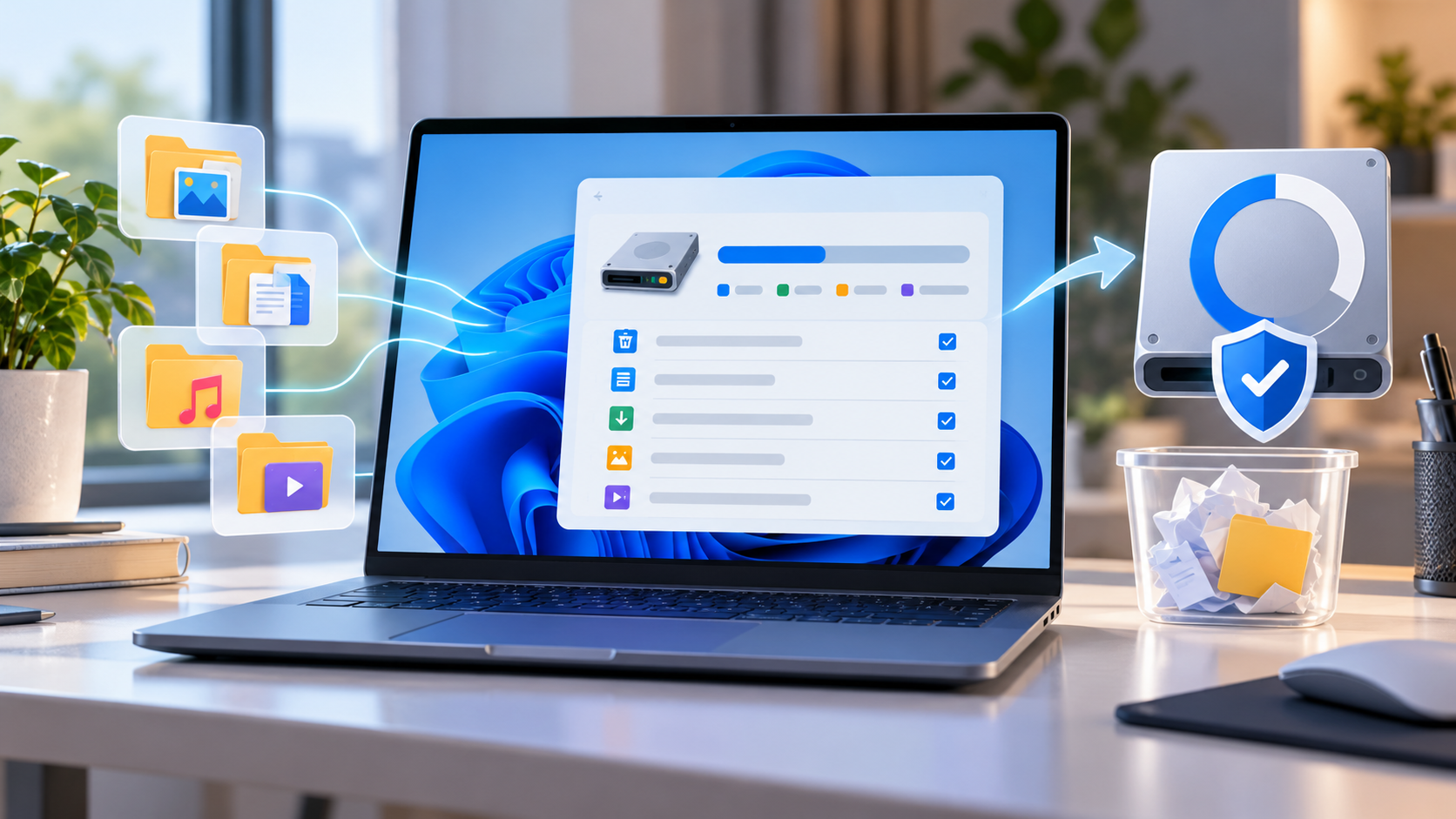

Solid-state drives are fast and have no spinning disks, but they are not immune to sudden failure, firmware problems, power-related corruption, or ordinary wear. A common mistake is to see a friendly '100% health' badge and assume important files are safe. Health indicators can be informative; they are not an insurance policy. The most useful SSD maintenance combines observation, prudent updates, and a backup you have actually tested.
Start with symptoms, not a percentage
A computer that occasionally freezes might be suffering from many things: low memory, thermal throttling, a buggy driver, or storage faults. Warning signs worth investigating include repeated read errors, a drive disappearing from firmware or the operating system, corrupted files, unexpectedly long file operations, and boot failures after the drive was previously healthy. Record when the symptom occurs and any exact error message. This helps separate a storage problem from an application crash.
When the SSD has become intermittently unavailable, avoid repeatedly rebooting or running aggressive disk stress tests. Preserve the most valuable data first if the drive is still readable. For business systems, a professional data-recovery decision may be more appropriate than trial-and-error fixes.
What SMART and vendor health tools measure
Many drives expose Self-Monitoring, Analysis and Reporting Technology data or NVMe health metrics. The precise fields vary by model. Common information includes temperature, spare capacity, percentage used, unsafe shutdowns, error logs, and an estimate of remaining endurance. These values need interpretation in the drive manufacturer's context; a count of unsafe shutdowns alone is not proof that a device will fail tomorrow.
Use diagnostic software from your SSD manufacturer's official support site when possible, or an established read-only monitoring utility. Beware of websites that insist a paid 'repair' subscription is necessary after showing a generic warning. Health software should help you decide what to back up and inspect, not push you to run destructive maintenance without understanding the cause.
Check the device and its connection
An external SSD that disconnects may have a bad cable, underpowered hub, or damaged port rather than failed flash memory. Try a known-good cable and an appropriate direct connection. For desktop internal drives, poor seating or overheating could cause intermittent problems. Avoid opening a laptop until you've checked its service guide and are comfortable with power and electrostatic safety. On an encrypted computer, keep recovery details secure before disassembling or changing boot hardware.
If the SSD is not recognized at all, verify whether firmware sees it. If BIOS/UEFI does not list a known-good internal drive, a filesystem repair command in Windows cannot address the physical detection problem. Document the symptoms and seek vendor support before making changes that might complicate recovery.
Design a backup you can actually restore
A useful strategy is to keep a working copy, a separate local backup, and another independent copy off the device or off-site. This is the familiar 3-2-1 idea; exact needs depend on how valuable the files are and how quickly you must recover. A synchronized cloud folder is convenient, but it may mirror accidental deletions. Versioned backups offer more protection than a single live mirror.
Organize backups by what recovery must restore: documents, browser exports, saved project files, email archives, photographs, and application license information. Back up encryption recovery keys appropriately without placing them in the same unprotected bag as the laptop. For a team, decide who is responsible for periodic test restores rather than assuming the backup application has worked because it displays a green icon.
Test restores and retention
Choose a representative document, restore it to a temporary separate folder, and open it. For larger systems, periodically test a complete project or system image on compatible spare hardware. Document how to recover access to the backup service without relying on the broken laptop itself. This is a major weakness in otherwise impressive backup setups: the recovery codes, second-factor device, and backup credentials all reside on the same device that may be lost.
Retention matters because a corrupted file might go unnoticed for weeks. If your backup overwrites the only previous copy every night, you could simply be preserving corrupted data. Keep historical versions for an appropriate period and protect at least one copy from everyday deletion and ransomware exposure.
When to replace or retire an SSD
Replacement makes sense after persistent errors, clear manufacturer diagnostics, repeated detection failures, or when the cost of downtime outweighs the drive's value. Clone only when the source is stable enough and a verified backup already exists. If the SSD is physically failing, file-level recovery by a professional may be safer than prolonged cloning attempts. Follow the maker's guidance for firmware updates, and never interrupt one to 'speed it up.'
Before recycling a working drive, use a manufacturer-supported secure erase or sanitization procedure appropriate to SSD technology. Merely deleting files and emptying the Recycle Bin does not reliably sanitize storage. If the drive has failed and cannot accept an erase command, follow your organization's secure disposal procedure.
Common questions
Does 100% health mean 100% safe? No. Health monitoring is a snapshot of certain metrics and cannot predict every failure mode.
Should I run defragmentation manually on an SSD? Let the operating system handle supported optimization; traditional repeated defragmentation is not a substitute for backup or fault diagnosis.
What if I have no backup right now? Copy the most important unique files first, verify the copy, then establish a repeatable schedule.
Further reading
Microsoft's Windows storage and file management guidance provides operating-system context. Consult your specific SSD maker's support documentation for interpretation of vendor health attributes.